Category Archives: Uncategorized

Using MSTable’s readWithCompletion to pull data from Server

For the issue of when there is a delete on the server side, it means we have less data on the server side
than the local side.

we need to make sure our local db sync up to that. One way to do that is to pull the data by using MSTable’s
readWithCompletion to get the latest from the server.

Than compare it to the core data.

In your QS******Service.m,

declare some properties to save data:

Then, we implement a method where we store the results from the server. We use MSTable’s
readWithCompletion method like so:

Then when you get the latest results

Binary Search Tree part 2

height of the tree

Analysis of array allocation and address

table: 0x100700000
*table 0x0

(table+1): 0x100700008
*table: 0x0

custom navigation button

A row of buttons with spacers in between

azure permissions

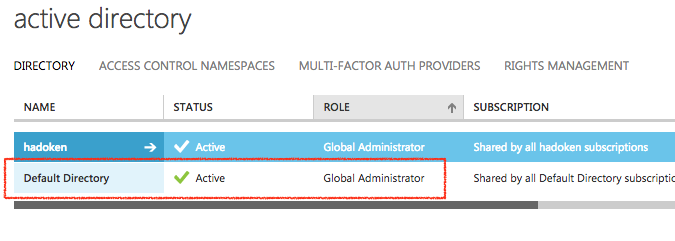
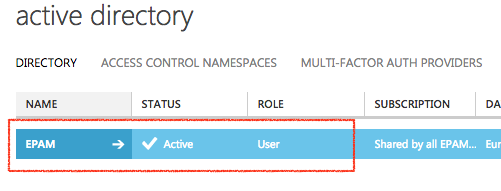
When you are in Active Directory, it will tell you what kind of Role you have:

Global admin
Billing admin
Service admin
User

MY_ROLE-Global_Admin

EPAM_ROLE-USER

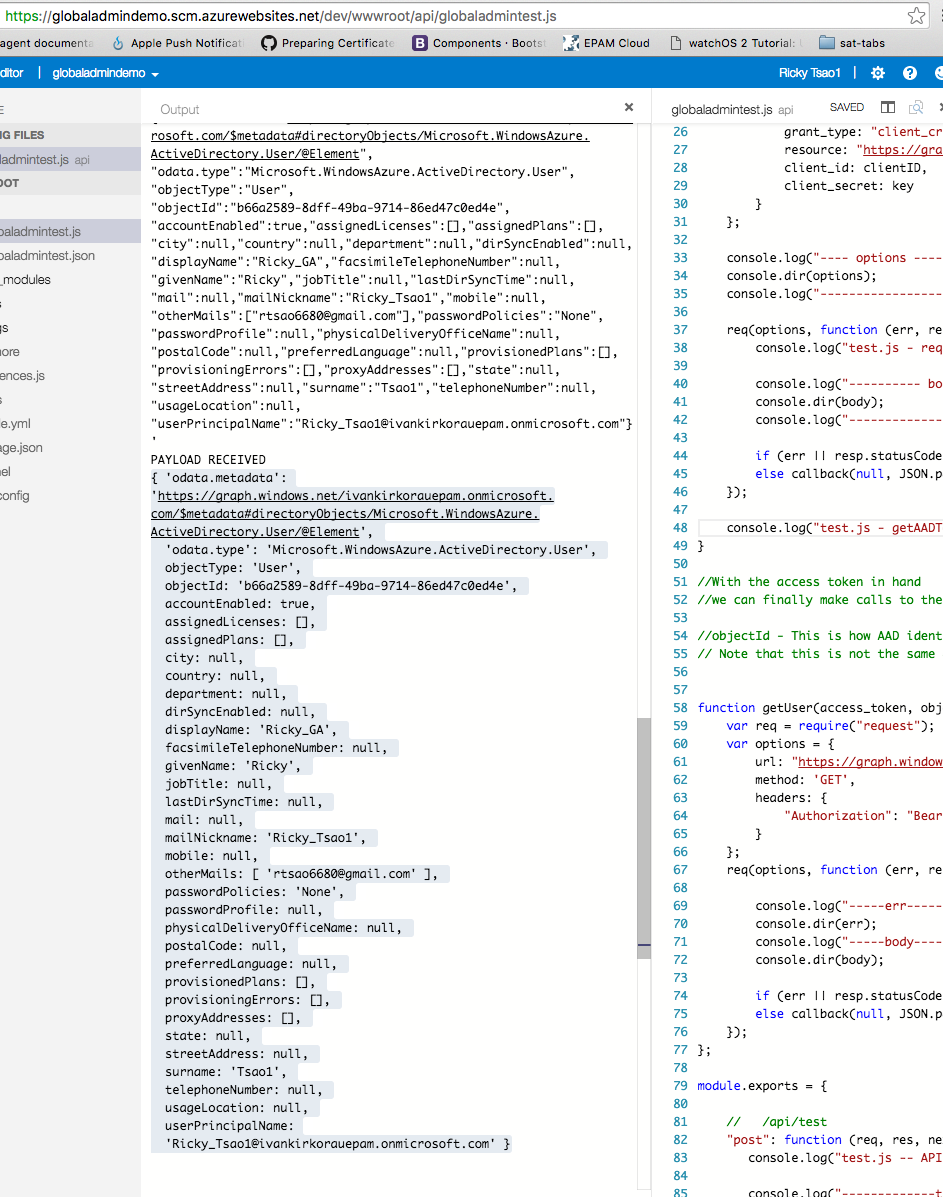
I have found that apps created by Global admin can access the GRAPH API. For example, a user from the Tenant’s Active Directory signs in, and then hits the Graph API to access their user data such as first name, last name, address, email…etc.

data-received

If you are a Global Admin, and set up the app, users of this app will have permissions to view their own data.

If you are NOT a Global admin, any app you set, will not have permissions to access Graph API.

HTTP request using iOS

Example 1 – pass data using Header fields

On the server side, the receiving script will strip the information from the request object and use the data, query the database, and return it.

On our iOS client side, we create a NSURL object that takes in the string of the web api address that we want to hit.

For example in our case it would be

http://104.167.105.220:8080/users/(some email)

NSString –> NSURL –> NSMutableURLRequest

  • So first, we assemble a string to satisfy the HTTP url.
  • Then throw it in a NSURL.
  • Create a NSMutableURLRequest object, and init it with our NSURL.
  • Manipulate the request object with http header field/value combinations.
  • set the HTTP VERB

NSMutableURLRequest object (iOS)

NOTE:

The key/value you assign in your NSMutableURLRequest object will be read on the server side (node) on the request object’s header’s properties.

Reading values for HTTP Header fields (node)

After you have set up your URL Request object, you insert it into a NSURLConnection, and make it run.

NSURLConnection object (iOS)

Full Source

Example 2 – authenticate a user

Logging in Azure

In order to log in Azure

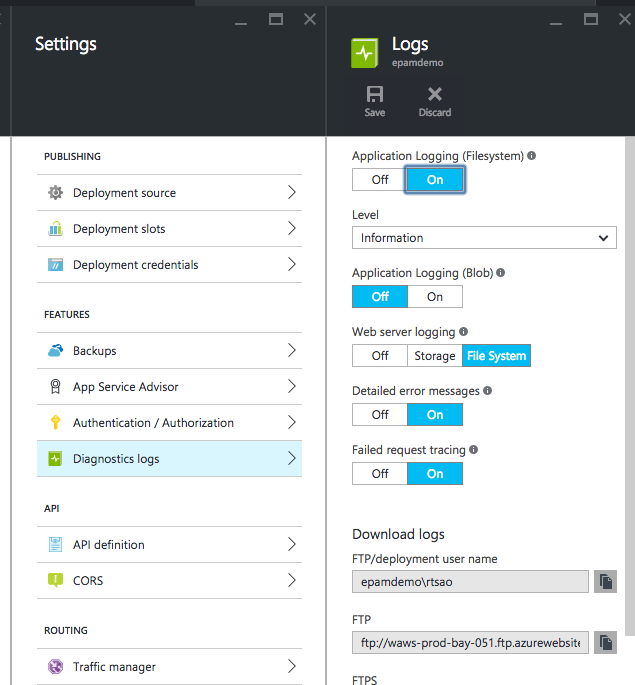
Settings >> Diagnostic Logs >> Logs

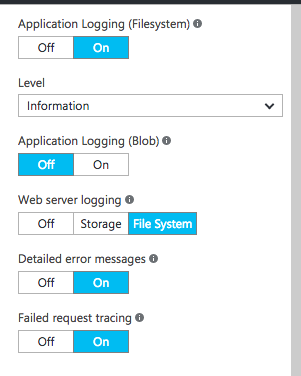
diagnostic_logs

Make sure the Application Logging is turned on

azure_logs2

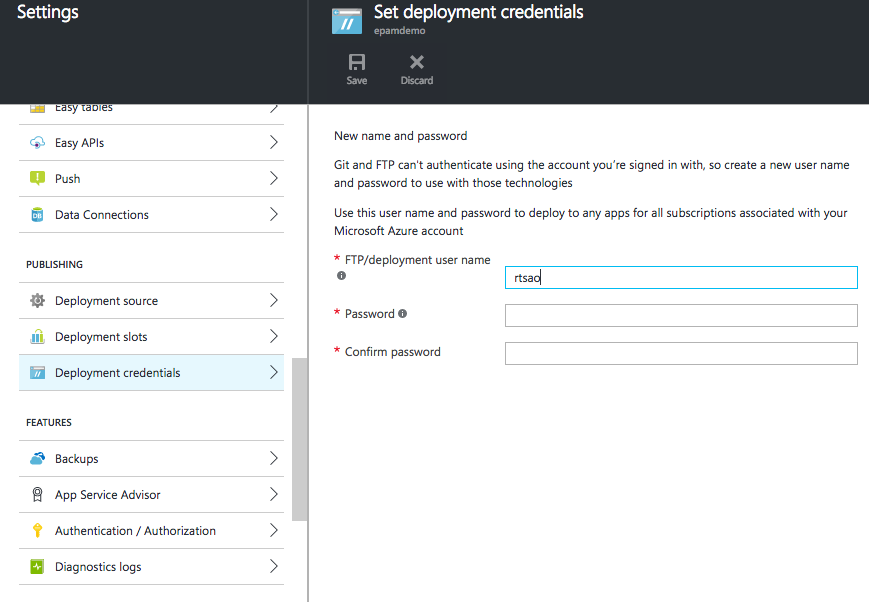
Create FTP credential accounts

In order to view your logs, you must create a FTP account so you can log in.

credentials

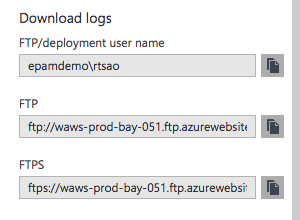
After creating a new FTP user, you’ll see your user name, and the FTP URLs. You will be using these FTP urls and credentials to view your logs.

azure_logs

Use the user name and password you just created to log into FTP client like Filezilla

filezilla_url

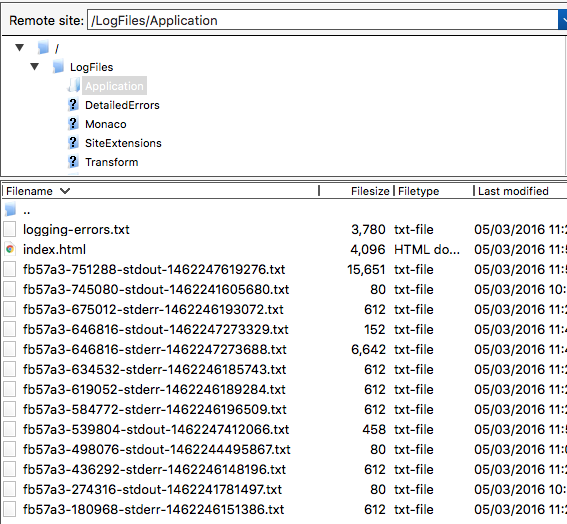
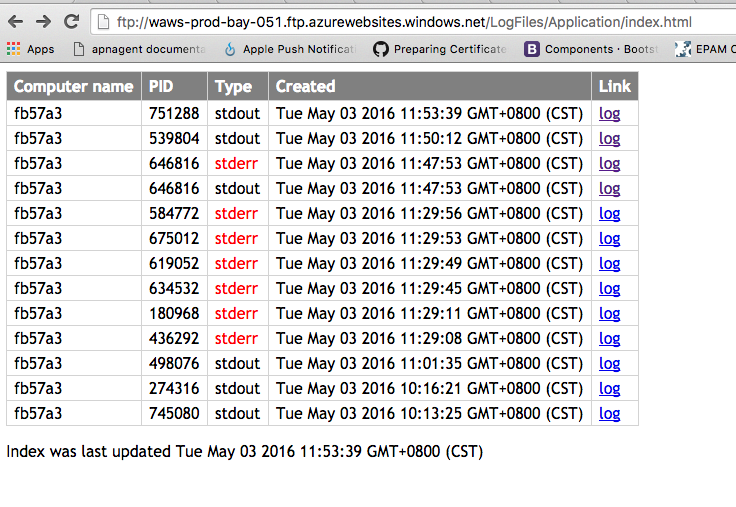
Once you log in, go to /LogFiles/Application and you’ll see all your logs with timestamps

filezilla_url2

You can copy the files onto your desktop and view it. However that is not efficient because you don’t want to do a copy every time a log is updated.

Web browser to view your logs

Hence, just put the FTP url into your browser, insert your credentials and update the browser whenever you make a change.

http_log_view